The alarm didn't ring on silent.
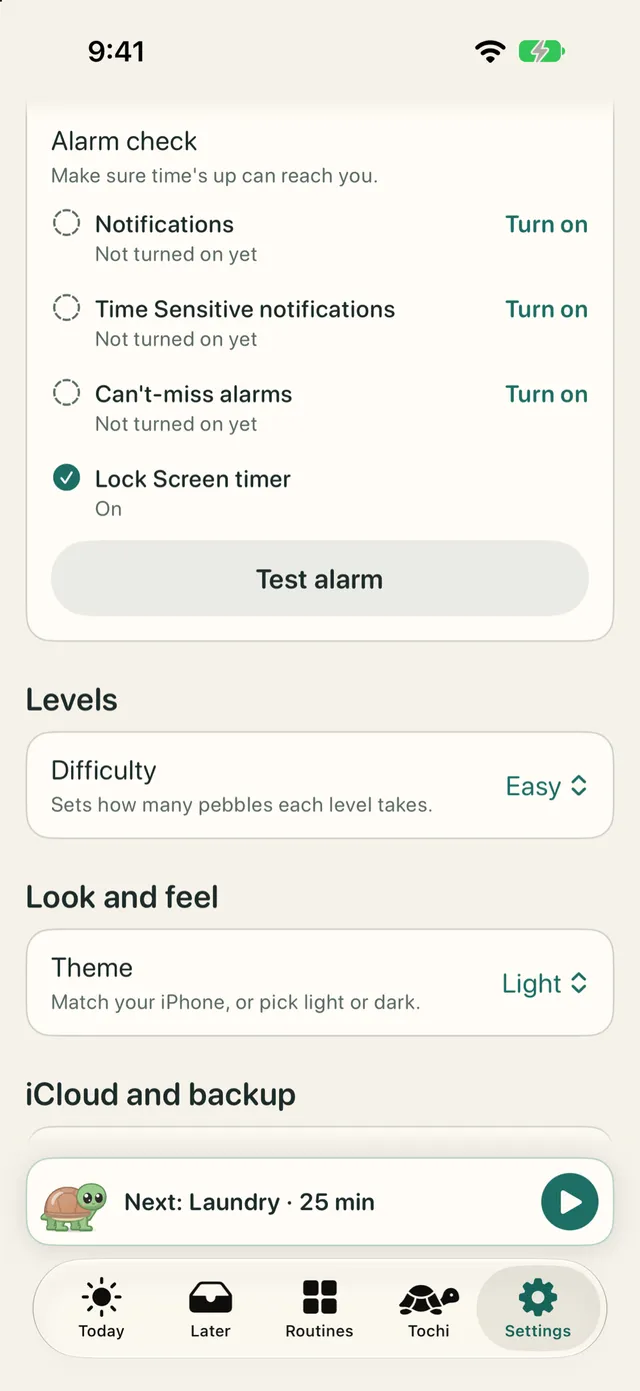
Open Settings > Alarm check in TimeTurtle. When everything is set, every line says "On". If "Can't-miss alarms" is off, tap Turn on. Then tap Test alarm: it rings after 5 seconds.
Write to support@timeturtle.app, or use Settings > Send feedback in the app.
It helps to include
Open Settings > Alarm check in TimeTurtle. When everything is set, every line says "On". If "Can't-miss alarms" is off, tap Turn on. Then tap Test alarm: it rings after 5 seconds.
It adds five minutes to the current task, from the app, the Lock Screen, a widget or control, or your Apple Watch.
Stop only quiets that ring. TimeTurtle checks in every 5 minutes until you tap Done or Pause, so a task never slips by.
Time's up plays your alarm sound. Heads-ups play your alert tone. Change them in Settings > Sounds.
Touch and hold the Home Screen, tap Edit, then Add Widget, and choose TimeTurtle. Controls (Done, +5 min, Pause, Add task) are in Control Center (tap + to add one), on the Lock Screen (Customize), and under Settings > Action Button.
On your Apple Watch, touch and hold the watch face, tap Edit, swipe to the complications, tap a slot, and choose TimeTurtle. A wide slot shows the most.
On your iPhone and your paired watch, and in your own iCloud if you're signed in, so it comes back after a reinstall or on a new iPhone. There's no TimeTurtle account and we can't see it. Settings > iCloud and backup shows the sync status and can save or import a backup file.
Settings > Levels > Difficulty. Switching keeps your level and how far along it you are.
Make sure both iPhones are signed into the same Apple ID with iCloud on. If iCloud isn't an option, save a backup file with Settings > iCloud and backup > Export backup and import it on the new iPhone.
Yes, when alarms are allowed. Time's up is a system alarm, the same kind the Clock app uses. It rings through silent mode and Focus with your iPhone's alarm sound, and keeps ringing until you tap Stop or Done.
Without the alarm permission, time's up arrives as a time-sensitive notification instead, which makes no sound on silent.
The alarm is handed to the system when the task starts, so it still rings in Airplane Mode and Low Power Mode, after a restart, and after you close TimeTurtle from the app switcher.
Settings > Alarm check ("Make sure time's up can reach you.") has one line for each thing time's up needs: Notifications, Time Sensitive notifications, Can't-miss alarms, and Lock Screen timer. Each says "On", "Not turned on yet", or what is off.
A line that is off has a Turn on button. If TimeTurtle hasn't asked yet, the button asks. If you said no before, it opens TimeTurtle's page in the iPhone Settings app.
When everything is on, it says "All set. Your alarms will ring, even on silent."
Two: notifications, and alarms. TimeTurtle asks only after you tap a button: Allow both in the intro, or Turn on in Alarm check or in the notice on Today.
Saying no is fine. TimeTurtle keeps working, with quieter alerts, and tells you so. Permissions are per device, so a new iPhone asks again.
Open Settings > Alarm check and tap Test alarm. About 5 seconds later, an alarm rings ("This is how time's up sounds") with your iPhone's alarm sound until you tap Stop.
If alarms aren't allowed, a notification shows instead, and it only makes a sound when your ringer is on. The test uses the same path as a real time's up, so a test that rings is a good sign.
Stop only quiets that one ring. Your task stays as it is, and TimeTurtle checks in again 5 minutes later ("Still on Laundry?"). The check-ins continue until you tap Done, +5, Pause, or Reset, or remove the task.
Done finishes the task, the same as Done anywhere else, and the check-ins stop.
The alarm has no +5. You'll find +5 on the heads-up, in the app, on the Lock Screen, in widgets and controls, and on your Apple Watch.
A gentle notification a little before time's up, 2 minutes before by default ("2 minutes left on Laundry"), with +5 min and Done buttons.
Change it in Settings > Alarms > Heads-up: Off, 1 min, 2 min, or 5 min.
It's a notification, not an alarm, so on silent it only vibrates, and otherwise it plays your alert tone. A Focus may silence it unless Time Sensitive notifications are allowed.
Go through these in order:
iOS doesn't let apps list or play your iPhone's ringtones, and a sound built into the app would play only once, for 30 seconds at most. The system alarm uses your iPhone's alarm sound and keeps ringing until you stop it.
No, on one device only: the one that last started, resumed, or changed the time of the running task. Your other devices show the timer but stay quiet, so nothing rings twice. Starting a task or tapping +5 on another device moves the alarms there.
An Apple Watch shows your iPhone's heads-up and alarm through the system.
Yes. TimeTurtle works out the time from timestamps, not from a counter that needs the app awake, so the countdown and the alarms stay right even if the app is closed or your iPhone is locked.
It opens Today at the top, where your current task and its buttons are. The buttons on a notification (+5 min, Done) work without opening the app.
Once you start the current task, a Live Activity shows it on the Lock Screen, in the Dynamic Island on iPhones that have one, and in the Apple Watch Smart Stack.
It shows Tochi, the task, a large countdown, when it ends ("until 4:06"), and "All done by" while the task runs. Its buttons are Done, +5 min, and Pause (or Resume, or Start). Tap anywhere else to open Today.
It appears once the current task has been started, not before. It ends when Today has no tasks left.
If it still doesn't show, open Settings > Alarm check. If the Lock Screen timer line is off, tap Turn on. It opens TimeTurtle's page in the iPhone Settings app, where you can allow Live Activities.
iOS ends Live Activities after 8 hours. Opening TimeTurtle brings it back if the current task has been started.
Yes. While the alarm rings, it covers the Lock Screen and the timer holds at 0:00. Once you tap Stop or Done, it switches to "Time's up" and counts up.
Yes. It follows your iPhone's light or dark appearance. Its tile in the Apple Watch Smart Stack is always dark.
One TimeTurtle widget, in four sizes: small and medium on the Home Screen, rectangular and inline on the Lock Screen.
It shows your current task and its time, counting down live and counting up after zero. On the Home Screen it has Done and +5 buttons, and medium adds Up next and "All done by". Tap anywhere else on it to open Today.
Done finishes the current task. +5 min adds 5 minutes to it. Pause starts, pauses, or resumes it. Add task opens Today ready to add a task.
Done, +5 min, and Pause act on whichever task is current when you press. They're dimmed when Today is empty.
Add them in Control Center (tap + to add a control), on the Lock Screen (Customize), or set one for the Action Button in iPhone Settings > Action Button, on iPhones that have one.
It updates a moment after any change (about 2 seconds), as far as iOS allows. The countdown ticks by itself and switches to "Time's up" at zero without opening the app.
iOS limits how often a widget can reload, so TimeTurtle reloads it only when what it shows has changed.
On a tinted or clear Home Screen, iOS draws widgets in one tint, so Tochi shows as a one-color shape and Done as a tinted word.
The watch app comes with the iPhone app. If automatic app installs are on for your watch, it installs by itself after you install TimeTurtle on your iPhone.
If not, open the Watch app on your iPhone, find TimeTurtle among the available apps, and tap Install. It needs watchOS 26.
Tochi, your current task and its time ("12:34 left", "until 8:05"), +5, Play/Pause, and Done, "All done by", the next five tasks under Up next, and your pebbles and rank.
Heads-ups, the time's up alarm, and the Lock Screen timer also appear on your watch, through your iPhone.
No. It shows Today from your iPhone and sends +5, Play/Pause, and Done back to it, so your paired iPhone needs to be nearby (in Bluetooth or Wi-Fi range).
If your iPhone can't be reached when you tap, the watch undoes the tap and says "Couldn't reach your iPhone. Try again."
Watch face complications keep counting on their own and switch to "Time's up" at zero, even when your iPhone is away. They show new changes once it's back in reach.
That shows before the first sync. Open TimeTurtle on your iPhone with your watch nearby, and your tasks show up once your iPhone sends them.
With nothing on Today, the watch says "Nothing planned". Add tasks on your iPhone and they'll show up there.
While the watch app is open, it usually catches up within about 10 seconds, and it refreshes the moment you open it.
A watch face complication follows a change on your iPhone within about 10 seconds when iOS allows it, and within about 15 minutes at most, because watchOS limits background updates. Opening the watch app brings it up to date at once.
No. TimeTurtle is an iPhone app. An iPad can run it in compatibility mode, but the Apple Watch features aren't available there.
If you're signed into iCloud, your tasks, routines, Recap history, pebbles, levels, daily high score, and progress on the long walk sync through your own private iCloud. So do five settings: Theme, Default task length, Minutes in task names, Start next task when I tap Done, and Heads-up.
Notification and alarm permissions stay on each device.
There's no TimeTurtle account, and we can't see any of it. When sync is working, Settings > iCloud and backup > iCloud sync says "Synced with iCloud".
No. TimeTurtle works fully without it, and your tasks and progress stay on this iPhone. Settings shows "iCloud is off, so your progress is only on this iPhone."
To keep a copy, use Export backup. To turn on sync, sign into iCloud in the iPhone Settings app.
Yes. Timers, alarms, and everything else run on your iPhone, and TimeTurtle makes no network calls of its own. iCloud sync is Apple's service and happens when your iPhone is online.
Open Settings > iCloud and backup and tap Export backup, then choose where to save it in Files. The file is named like "TimeTurtle backup 2026-09-29" and holds your tasks, routines, history, and pebbles. It doesn't include settings.
It's a plain-text file that anyone who has it can read, so keep it somewhere private.
Open Settings > iCloud and backup, tap Import backup, choose the file, and confirm.
Import only adds what this iPhone doesn't have yet. It never removes or changes anything, so importing the same file twice adds nothing twice. A task that was running comes in paused.
On its first launch, TimeTurtle shows "Looking for your progress" for up to 5 seconds. If it finds your progress in iCloud (same Apple ID, iCloud on), it shows a welcome-back screen instead of the setup.
Permissions are per device, so allow notifications and alarms again.
Pebbles only ever add up, so syncing never overwrites your progress. If tasks were started on two devices before they synced, the most recently started one keeps running and the other pauses with all its time kept.
Only one device rings, and a level up, new place, or record celebrates once.
Deleting the app deletes its data from your iPhone. If you use iCloud, your copy there stays, so your progress comes back when you install TimeTurtle again.
You can manage what apps keep in iCloud from your iPhone's iCloud settings.
Close TimeTurtle and open it again. Your tasks on your iPhone are untouched. Anything you add while the notice shows isn't kept, and Done from an alarm, the Lock Screen, or your watch changes nothing until you reopen the app.
This most often happens when iOS opens TimeTurtle in the background right after a restart, before you've unlocked your iPhone. Opening the app after unlocking fixes it.
If it keeps showing, write to support@timeturtle.app.
After a reinstall, or after restoring your iPhone from a backup, TimeTurtle sees your iPhone as a new device. The running task still shows its timer, but its alarms ring only once the task is started or retimed on this iPhone.
To make it ring, pause the task and tap play again, or tap +5.
That notice shows when tasks are waiting and alarms aren't allowed. Tap Turn on to allow them. It stays until alarms are on.
If no email app can open, TimeTurtle shows our address with a Copy address button. You can write to support@timeturtle.app from any device.
Yes, with labels. Icon buttons have labels, times are spoken in words where digits would be misread, colors are named wherever they would show only as color, and celebrations are announced. Every card on Today has Move up and Move down actions instead of dragging.
TimeTurtle 1.0 hasn't had a full VoiceOver audit. If something doesn't read well, please tell us at support@timeturtle.app.
Yes. Text follows your iPhone's text size, up to the largest accessibility size. Screens restack and scroll instead of cutting text off. A few fixed-size places, like the Lock Screen timer, stop at the largest standard size.
The shoreline's sand and the beach creatures stay still, and Tochi holds still poses. Celebrations keep the same moments but swap shaking, spinning, and flying pieces for glows and fades. The intro's demos hold still too.
Turn on Reduce Motion in your iPhone's Settings app.
There's a full dark mode: TimeTurtle follows your iPhone, or you can pick one in Settings > Theme (System, Light, Dark).
Text and graphics meet WCAG 2 contrast in light and dark, apart from a few parts iOS draws itself. Increase Contrast strengthens borders. Color never carries meaning on its own, and there's no red anywhere.
There's no setting for them in TimeTurtle, and celebrations always play in full. Sounds stay quiet in silent mode, and haptics play unless System Haptics is off in your iPhone's settings.
Every celebration sound has something to see too. Nothing flashes more than three times in any second.
Yes. TimeTurtle is free, with no ads.
An iPhone with iOS 26 or later. For the watch app, an Apple Watch with watchOS 26, paired with that iPhone. On iPad, TimeTurtle runs in compatibility mode, without the watch features. There's no Mac version.
No. After two or more days away, a Welcome back card offers a clean slate: Move all to Later, or Keep my list. It never does either on its own.
Swipes and deletes show an Undo toast. Done has Undo too, in the toast and then as a link on the finished task.
Check Settings > Timer > Start next task when I tap Done. When it's off, the next task waits for you to tap play. It's on by default.
Finish a task: you get one pebble for every 5 minutes you planned, from 1 to 12 a task, timed or not. A break with Tochi earns 1, 2, or 3. Running long never costs anything.
Yes. Open the task and tap Mark done. It's marked "Not timed" and still earns its pebbles.
No. Tochi is always Sir Tochi McShellface.
Settings > Support > Replay intro.
Write to support@timeturtle.app, or use Settings > Send feedback in the app.
Email support